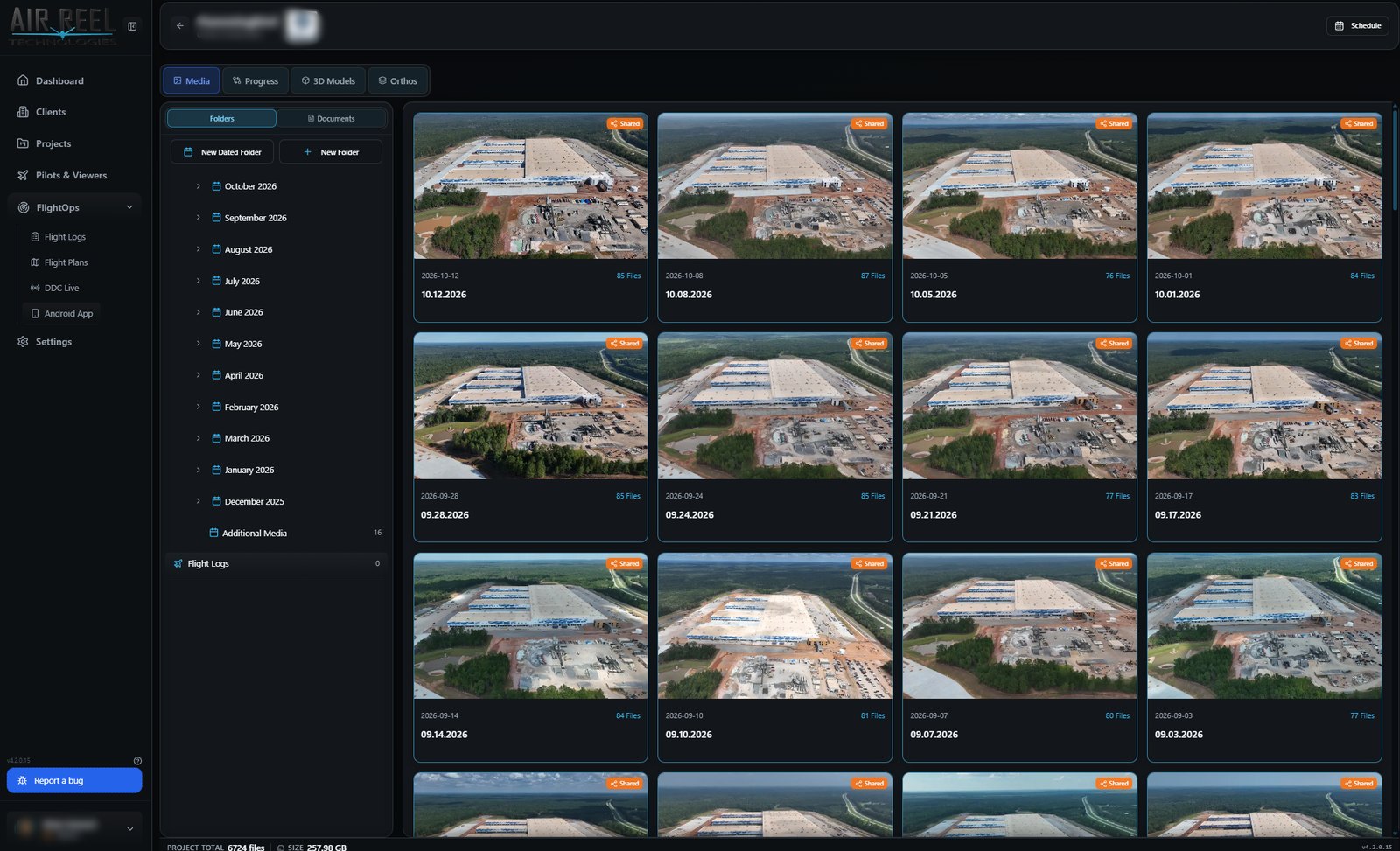
Every visit on the record, every change side by side.
Recurring flights land in dated folders. Pick any two captures of the same waypoint and slide between them to show a client exactly what changed, then keep the reports and paperwork in the same project.
One folder per visit, newest first.
Each flight day becomes a dated folder with its own file count and sharing status, so a site that is flown every few days stays easy to browse. Project totals for files and storage sit at the bottom of the screen.
- Dated folders grouped by month
- File count and share status on every folder card
- Project totals for files and size
- Media, Progress, 3D Models and Orthos tabs on every project
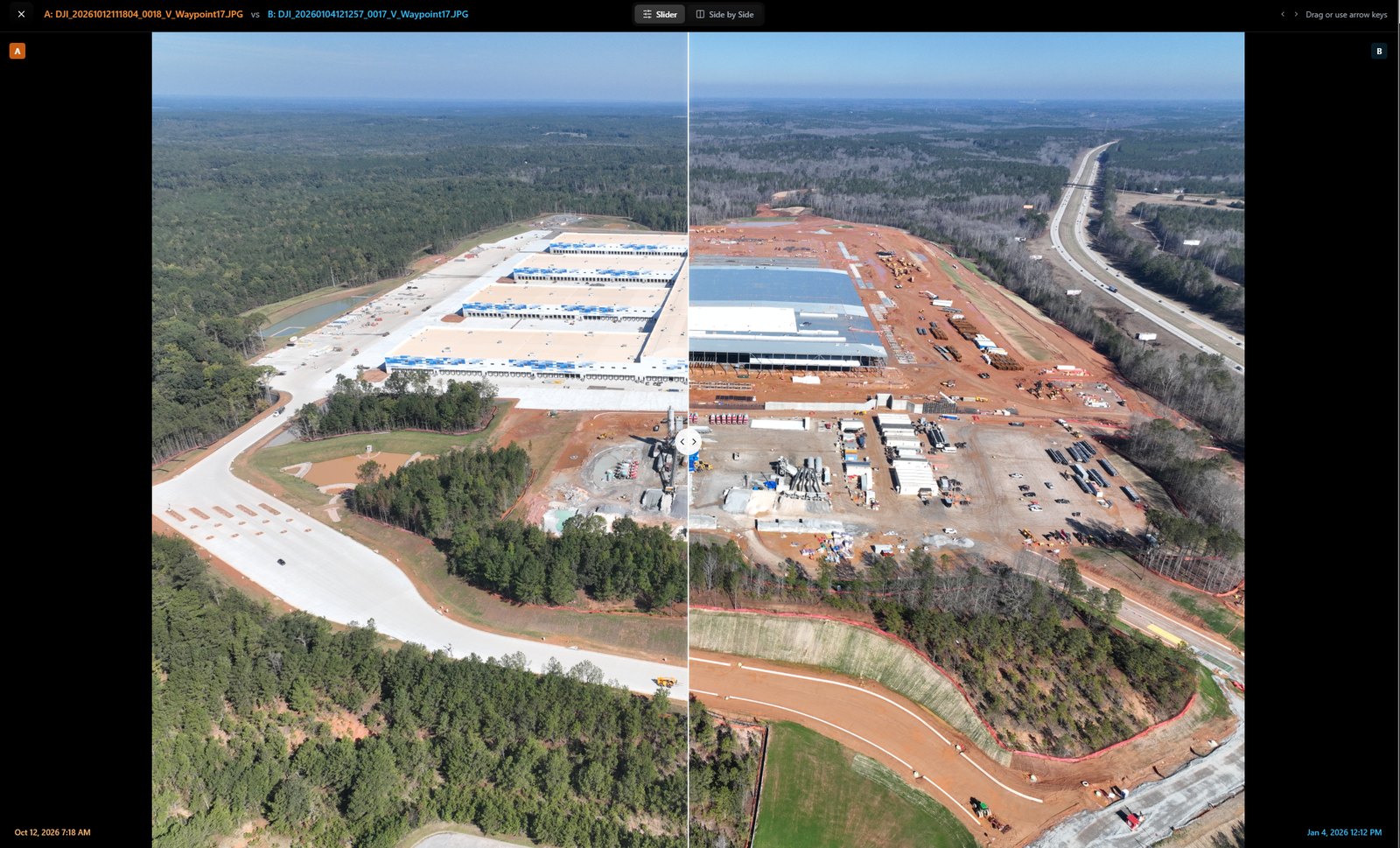
Slide between two dates of the same shot.
Compare two captures of the same waypoint with a drag slider, or switch to side by side. Each side is labelled with its source file and capture time, and the arrow keys nudge the divider for fine control.
- Slider and side-by-side modes
- Drag the handle or use the arrow keys
- A and B sides labelled with file name and capture time
- Built for recurring waypoint flights
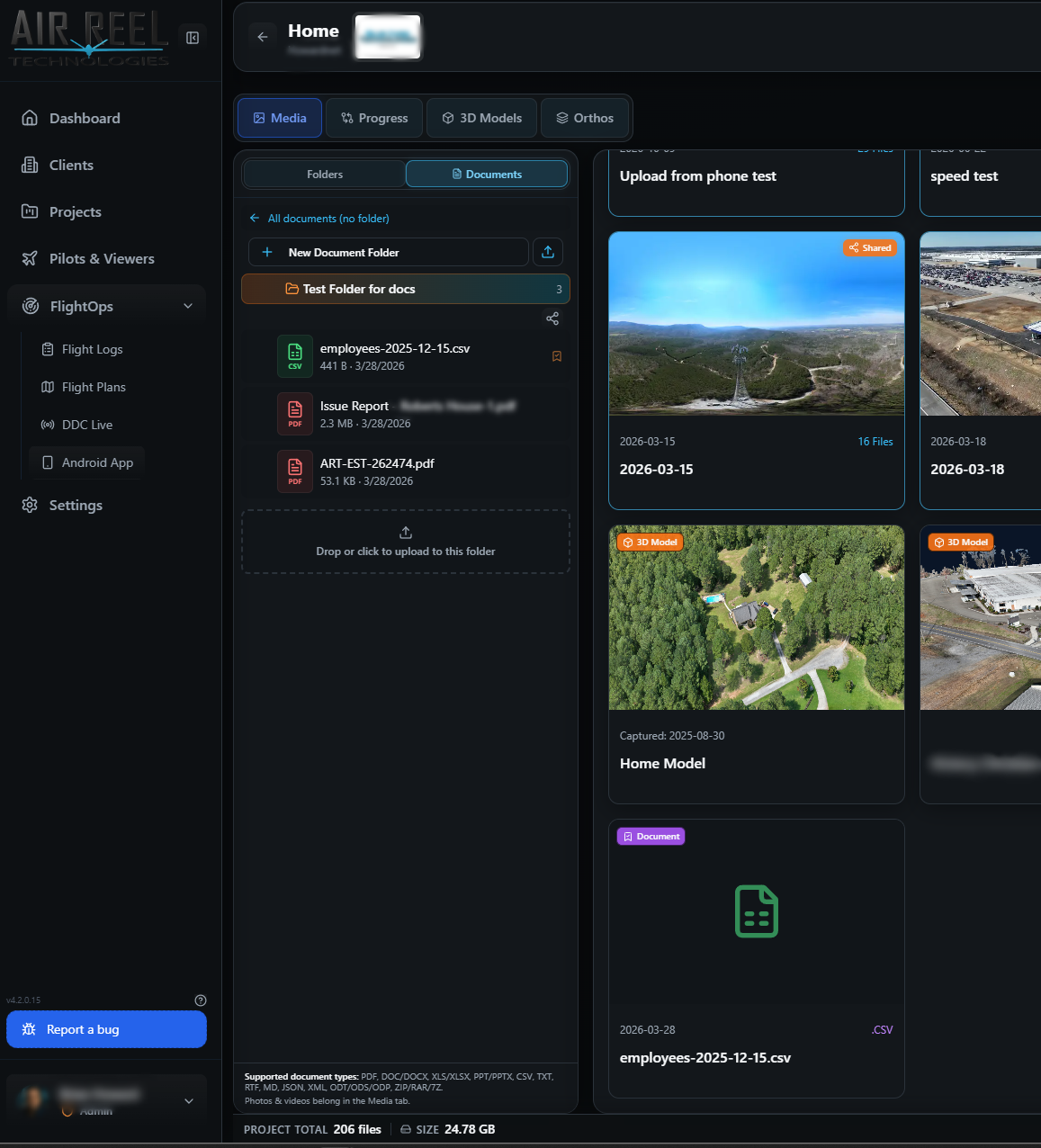
Reports and paperwork live with the project.
Switch a project from Folders to Documents to file PDFs, spreadsheets and other documents next to the media they relate to. Documents get their own folders.
- Document folders per project
- PDF, Office documents, CSV, text, JSON, XML, ZIP and more
- Drag-and-drop upload into the selected folder
- Photos and videos stay in the Media tab